



The Sysadmin's Guide to Fixing Admin Rights Requirements in Legacy Software


Join thousands of professionals and get the latest insight on Compliance & Cybersecurity.
You've been there before. A critical business application demands local administrator rights to run properly, your security policy explicitly forbids granting those rights, and somehow it's become your problem to solve. The vendor shrugs and says, "That's just how it works," while management insists this legacy software is essential for operations. You're caught in the middle, stuck between security requirements and business needs, with that UAC prompt mocking your existence.
This isn't just an annoyance—it's a serious security vulnerability waiting to be exploited. Every application running with admin privileges has the keys to your entire system, creating an unnecessarily large attack surface.
"But we've always given the accounting department admin rights for their tax software!" is not a valid security posture in today's threat landscape.
The good news? You don't have to choose between security and functionality. This guide will walk you through practical, technical solutions to diagnose exactly why that legacy application demands elevated privileges and how to fix the underlying issues without compromising your security stance.
Why Do Legacy Apps Demand the Keys to the Kingdom?
Most applications requiring admin rights weren't designed with modern security practices in mind. They were built in an era when User Account Control (UAC) didn't exist and everyone routinely logged in with full administrator access.
The most common reasons legacy applications demand elevated privileges include:

- Writing to protected locations: The application attempts to write configuration files, logs, or data directly to
C:\Program Filesor other system directories that standard users can't modify. - Registry access issues: The application tries to write settings to
HKEY_LOCAL_MACHINE(HKLM) instead ofHKEY_CURRENT_USER(HKCU). - System-level operations: The app needs to install drivers, modify system settings, or perform other high-privilege tasks.
- Poor manifest design: The application's manifest incorrectly specifies that it needs administrator privileges, even if its functionality doesn't actually require them.
As one frustrated sysadmin on Reddit put it: "Requiring unnecessary user privileges complicates installations" and creates ongoing management headaches.
Rather than throwing your hands up and granting admin rights, let's get to the root of the problem with some powerful diagnostic tools.
The Diagnostic Toolkit - Pinpointing the Problem with Procmon
Process Monitor (Procmon) is your best friend for diagnosing admin rights requirements. This free Microsoft Sysinternals tool shows real-time file system, Registry, and process activity, helping you identify exactly what's triggering those permission errors.
Here's how to use it effectively:
Step 1: Set Up Your Test Environment
- Install Procmon on a test machine (not production).
- Log in as a standard user (not an administrator).
- Launch Procmon with administrator rights (yes, the irony isn't lost on us).
Step 2: Configure Filters for Clarity

The raw output from Procmon is overwhelming and mostly irrelevant to our task. Apply these filters to see only the important stuff:
- Click Filter → Filter... (or press Ctrl+L).
- Add these filters:
Process Name is [YourLegacyApp.exe]→ IncludeResult is ACCESS DENIED→ Include- Click "Add" after each filter, then "Apply"
This dramatically reduces the noise, showing only the operations where your application was denied access.
Step 3: Reproduce the Problem
- Start the Procmon capture (File → Capture Events, or press Ctrl+E).
- Launch your legacy application and perform the action that fails or triggers the UAC prompt.
- Once the error occurs, stop the capture (File → Capture Events again, or Ctrl+E).
Step 4: Analyze the Results
The filtered results will show exactly what resources the application tried to access and failed. Common patterns include:
- Access denied when writing to
C:\Program Files\YourApp\config.ini - Access denied when creating registry keys in
HKLM\SOFTWARE\YourVendor - "FILE LOCKED WITH ONLY READERS" or "NAME NOT FOUND" errors
In a Spiceworks Community thread, sysadmins report that these permission issues often have simple patterns that can be addressed once identified.
Make detailed notes of these locations—they're the specific targets we need to fix, rather than granting blanket admin rights to the entire application.
The Scalpel Approach - Fixing Permissions with Group Policy
Now that we know exactly which resources the application needs access to, we can apply the principle of least privilege by granting permissions only to those specific locations.
Group Policy is the ideal tool for this in a domain environment because it allows for centralized management and consistent application across multiple machines.
Creating a Targeted Group Policy Object (GPO)
- Open Group Policy Management Console (GPMC).
- Create a new GPO named something descriptive like "APP - LegacyFinance Permissions".
- Link this GPO to the OU containing the computers that need to run the application.
- Right-click the new GPO and select "Edit".
Fixing File and Folder Permissions
To grant permissions to protected file system locations:
- Navigate to: Computer Configuration > Policies > Windows Settings > Security Settings > File System
- Right-click and choose "Add File..." or "Add Folder..."
- Browse to the file or folder identified by Procmon (e.g.,
C:\Program Files\LegacyApp) - Click "Define this policy setting"
- Click "Add..." to add the user group that needs access (typically "Authenticated Users")
- Grant the minimum necessary permissions (usually "Modify" is sufficient)
- Click "OK" to save
As detailed in the DeployHappiness guide, this granular approach maintains security while enabling functionality.
Fixing Registry Permissions
Similarly, for registry access:
- Navigate to: Computer Configuration > Policies > Windows Settings > Security Settings > Registry
- Right-click and select "Add Key..."
- Select the registry key identified by Procmon (e.g.,
MACHINE\SOFTWARE\YourVendor) - Click "Define this policy setting"
- Click "Add..." to add the appropriate user group
- Grant the minimum permissions needed (usually "Full Control")
- Click "OK" to save
Testing Your Fix
After applying the GPO, verify the fix by:
- Logging in as a standard user on a test machine
- Running
gpupdate /forceto apply the policy immediately - Launching the application and testing the functionality that previously failed
If everything works correctly, you've successfully fixed the problem without compromising security. High five!
The Last Resort - Bypassing UAC with Application Shims
Sometimes, despite your best efforts with permissions, an application still demands admin rights due to how it's coded or its manifest requirements. When all else fails, application compatibility shims can be your salvation.
A shim is a small piece of code that intercepts API calls from an application to the operating system. For our purposes, we can use the RunAsInvoker shim, which tells Windows to run an application with the privilege level of the user who launched it, effectively bypassing the UAC prompt.
When to Use Shims
Shims should be your last resort because:
- They don't fix the underlying issue
- They might break if the application is updated
- They need to be deployed and maintained on each client machine
That said, when dealing with a vendor who won't update their software and you're out of other options, shims can save the day.
Creating a Compatibility Shim
To create a shim using the Application Compatibility Toolkit (ACT):
- Install the ACT: Download and install the Microsoft Application Compatibility Toolkit, which is part of the Windows Assessment and Deployment Kit (ADK).
- Create a Shim Database:
- Open the Compatibility Administrator tool (32-bit or 64-bit, depending on your app)
- Right-click on "Custom Databases" and select "Create New → Application Fix..."
- Enter the application name, vendor, and browse to the executable file
- In the Compatibility Modes screen, check "RunAsInvoker"
- Click Next through the remaining prompts
- Click Finish to create the fix
- Save and Test the Shim:
- Save the database with a descriptive name (e.g.,
LegacyAppFix.sdb) - Test the shim on a single machine by installing it with:
sdbinst.exe -q YourShimFile.sdb - Verify the application works without admin privileges
- Save the database with a descriptive name (e.g.,
- Deploy the Shim: Once tested, deploy the shim to all required machines using your preferred deployment method (SCCM, Group Policy, etc.).
As detailed by Alberto Morales, this technique has saved countless sysadmins from security compromises while maintaining application functionality.
Important Caveats with Shims
- The shim must be installed after the application is installed
- If the application is updated, you may need to recreate and redeploy the shim
- Not all applications work with shims; thorough testing is essential
- Unlike the permissions approach, shims don't actually fix the underlying security issues
Alternative Strategies and Long-Term Solutions
While Procmon and shims are powerful tools, there are other approaches worth considering:
LUA Buglight
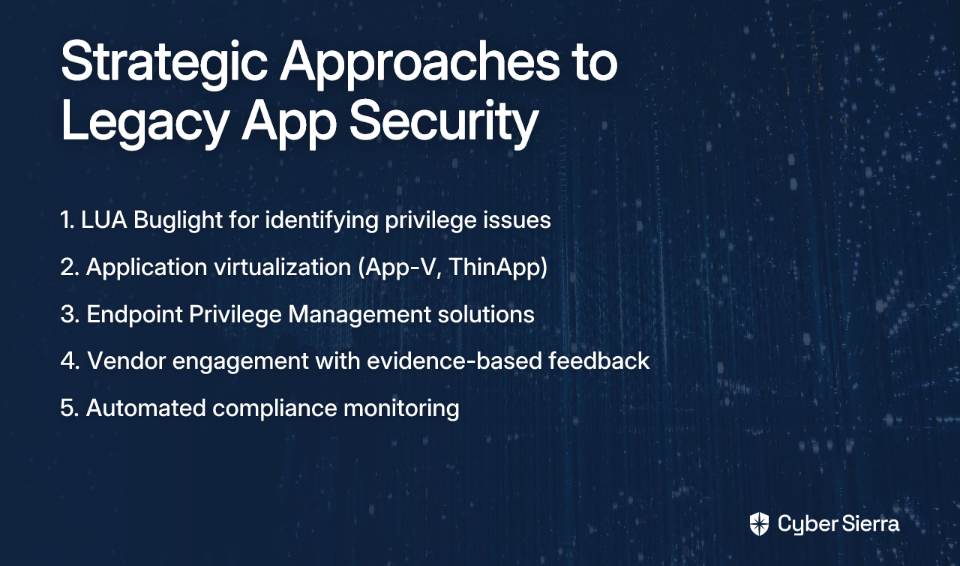
LUA Buglight is a Microsoft tool specifically designed to identify and fix admin privilege issues. It can sometimes spot problems that Procmon misses, particularly with COM object instantiation and registration.
Application Virtualization
Tools like Microsoft App-V or VMware ThinApp can package applications in isolated virtual environments, allowing them to operate as if they had admin rights without actually granting those rights to the underlying OS. This approach works well for applications that need to write to protected locations.
Endpoint Privilege Management (EPM)
Commercial EPM products like BeyondTrust, CyberArk, or Thycotic provide more sophisticated solutions for managing application privileges. These tools can elevate privileges for specific applications without giving users admin rights, while also providing detailed auditing and control.
Engaging with Vendors
The most sustainable long-term solution is to push software vendors to fix their applications. Armed with your Procmon findings, you can provide vendors with specific issues to address rather than vague complaints.
As noted in user discussions, requiring unnecessary privileges should be considered a "red flag" for software products. Let vendors know that their poor security practices make their software less competitive and more difficult to deploy in modern, security-conscious environments.
Conclusion: Balancing Security and Functionality
The struggle between security requirements and legacy software needs is one of the most common headaches for sysadmins. By using the tools and techniques outlined in this guide, you can:
- Identify the specific permission issues causing admin rights requirements
- Apply targeted fixes using Group Policy or direct permission changes
- Use compatibility shims as a last resort when other methods fail
- Advocate for better software design with evidence-based vendor feedback
Remember that the principle of least privilege should guide all your decisions. Every permission granted should be the minimum necessary for functionality, no more. With careful analysis and targeted fixes, you can maintain a secure environment without sacrificing the legacy applications your organization depends on.
Your users get their applications, management gets their security compliance, and you get to sleep at night knowing you haven't compromised your network's integrity. That's a win-win-win scenario in the typically no-win world of IT security.
Frequently Asked Questions
Why do old applications often require administrator rights?
Old applications often require administrator rights because they were built before modern security standards, like User Account Control (UAC), were common. They frequently attempt to write files to protected system locations (like C:\Program Files) or modify system-wide registry keys (in HKEY_LOCAL_MACHINE), actions that are restricted for standard users.
How can I find out the specific reason an application needs admin rights?
The most effective way to find the specific reason is by using Microsoft's Process Monitor (Procmon) tool. By running the application as a standard user and filtering Procmon's output to show "ACCESS DENIED" results for that application's process, you can pinpoint the exact files, folders, or registry keys it is failing to access.
What is the best way to fix application permission issues without granting admin rights?
The best and most secure method is to use Group Policy (in a domain environment) to grant the application's user group the minimum necessary permissions to the specific files, folders, or registry keys it needs. This follows the principle of least privilege, resolving the issue without creating a broad security risk. For standalone machines, you can adjust permissions directly on the file system or registry.
When should I use an application compatibility shim?
You should only use an application compatibility shim, like RunAsInvoker, as a last resort. This option is for when an application still demands elevation even after you've fixed all underlying file and registry permission issues, often due to how the application's manifest is coded. Shims bypass the UAC prompt but don't fix the root cause.
Is it safe to bypass UAC with shims like RunAsInvoker?
Bypassing UAC with a shim is a calculated risk and is less secure than fixing the underlying permissions. While the RunAsInvoker shim makes the application run with the standard user's permissions, it doesn't solve the core problem and can have unintended side effects. It should only be used when you cannot modify permissions and the vendor will not provide a fix.
What should I do if my application still doesn't work after fixing permissions?
If fixing permissions doesn't work, the issue might be more complex, such as problems with COM object instantiation or incorrect application manifests. In this case, you can try alternative diagnostic tools like LUA Buglight or consider using an application compatibility shim. For a more robust, long-term solution, look into application virtualization or Endpoint Privilege Management (EPM) tools.
