



10 Best Practices for Suspicious Login Alerts Across Multiple Cloud Platforms

Join thousands of professionals and get the latest insight on Compliance & Cybersecurity.
Summary
- Automating alert enrichment with contextual data like IP reputation and user history can reduce the need for manual investigation from 39% to just 14%.
- The most critical step to combat alert fatigue is establishing a documented investigation protocol that defines clear actions for every alert type and severity level.
- Key actions include enforcing MFA universally, fine-tuning native alert policies in M365, Google Workspace, and AWS, and eliminating shared account credentials.
- Unifying multi-cloud alerts into a single platform like Cyber Sierra's Continuous Control Monitoring provides the visibility needed for proactive, efficient risk management.
Your Google Admin Console has 847 unreviewed alerts. Your Microsoft 365 Security Center is flagging logins from three countries you've never heard of. Your AWS GuardDuty dashboard is lit up like a Christmas tree. And somewhere in the middle of all that noise is a real threat — if you can find it.
This is the daily reality for security and IT teams managing multi-cloud environments. Alert fatigue isn't just frustrating; it's driven by a flood of false positives, like employees logging in from a new location. Without a clear process, every single alert demands attention you don't have.
The result? Alerts pile up, real incidents get buried, and the anxiety of not knowing whether you've missed something critical becomes a constant background hum.
This article breaks down 10 actionable best practices for suspicious login alerts across Microsoft 365, Google Workspace, and AWS — so you can cut through the noise, build a repeatable process, and stop dreading the moment your alert queue refreshes.
10 Best Practices for Suspicious Login Alerts
1. Establish a Clear Investigation Protocol
The biggest source of alert anxiety isn't the volume — it's not knowing what to do when one lands in your queue. As one sysadmin shared, the absence of a defined process leads to alerts being ignored entirely: "I'm kinda like ghosting them and they keep piling up."
A documented investigation protocol removes that ambiguity. Every alert should have a predetermined path, not a blank stare.
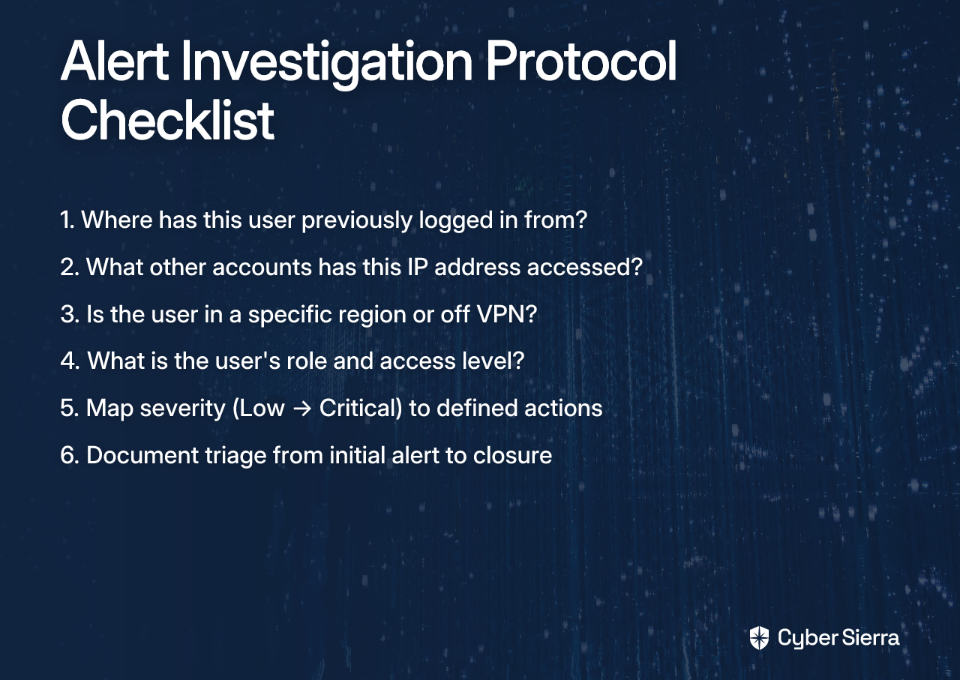
Your protocol should answer these questions for every alert, as highlighted in research from Expel:
- Where has this user previously logged in from?
- What other accounts has this IP address accessed?
- Is this user in a specific region — did they forget to connect to the VPN?
- What is the user's role and what level of access do they have?
Build a response matrix that maps severity levels (Low, Medium, High, Critical) to specific actions: contact the user, force a password reset, suspend the account, escalate to the incident response team. Document the process from initial triage to resolution and closure. This gives your team confidence and gives auditors a trail.
2. Automate Contextual Enrichment to Fight Alert Fatigue
Raw alerts without context are noise. An alert that says "login from unusual location" tells you almost nothing. An alert that says "login from Lagos, Nigeria — user has never logged in outside Chicago, IP flagged in two threat intel feeds, 3 AM local time" tells you everything you need to triage in seconds.
Enrichment automation is the difference between those two scenarios. According to Expel's security operations research, automating data collection at alert time reduced the percentage of alerts requiring manual investigation from 39% to just 14% — and pushed alerts closed without investigation from 61% to 86%.
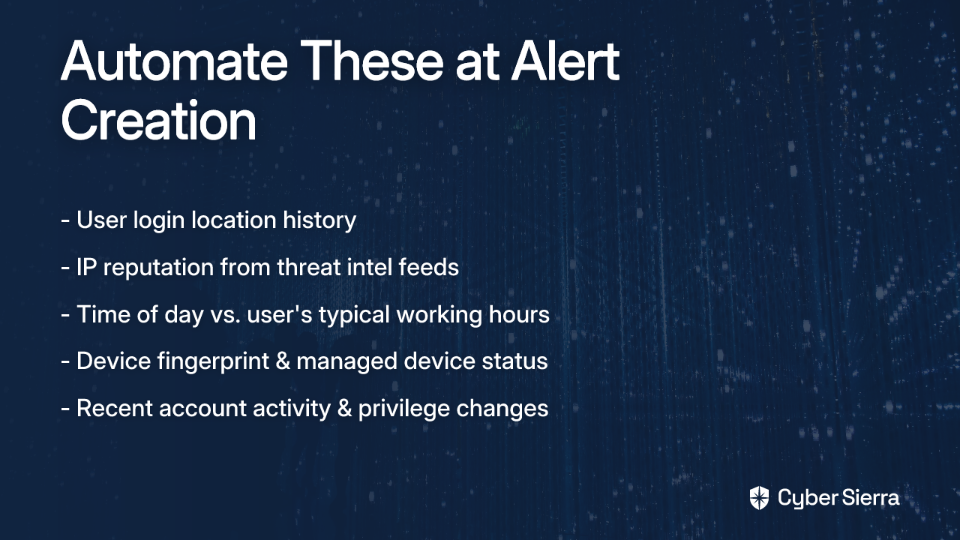
The goal is to give analysts complete context before they ever click into an alert.
3. Enforce Multi-Factor Authentication (MFA) Everywhere
Multi-factor authentication (MFA) is the single most effective control for preventing account takeovers from stolen credentials. It doesn't reduce suspicious login alerts directly — but it dramatically reduces the impact of a successful login from an unrecognized location, because the attacker still can't get in.
In Microsoft 365, configuring MFA is straightforward:
- Go to the Azure portal.
- Navigate to Azure Active Directory > Users.
- Select Multi-Factor Authentication and enforce it for all users — at minimum for all administrative and privileged accounts.
In Google Workspace, enroll all users in 2-Step Verification through the Admin Console > Security > 2-Step Verification. As Google's admin documentation notes, enrolling users in 2-Step Verification also reduces false positive login alerts, since a confirmed MFA challenge signals a legitimate sign-in.
In AWS, enforce MFA for all AWS Identity and Access Management (IAM) users — especially those with console access or administrative permissions.
No exceptions. No grace periods. MFA is table stakes.
4. Fine-Tune Alert Policies in Microsoft 365
Out-of-the-box alert policies in Microsoft 365 are deliberately broad. They're designed to catch everything — which means they catch a lot of things that aren't threats. Customizing these policies to match your organization's risk profile is essential for reducing false positives without missing real incidents.
To configure alert policies, according to Microsoft 365 best practices:
- Access the Microsoft 365 Security and Compliance Center.
- Navigate to Alerts > Alert policies.
- Create or modify policies for the events that matter most to your environment:
- Logins from unusual or suspicious geographic locations
- Logins outside business hours for privileged accounts
- Excessive failed login attempts
- Impossible travel events (login from two geographically distant locations within a short timeframe)
Beyond alerts, regularly review your Microsoft Secure Score in the Microsoft 365 Security Center. It provides prioritized, tailored recommendations for improving your security posture based on your current configuration — a useful tool for ongoing tuning.
5. Leverage Login Audit Logs in Google Workspace
Google Workspace captures rich security data that many organizations never actively monitor. The Login Audit Log records every sign-in event — including flagged anomalies — and allows you to create custom alerts directly from filtered results.
To set up a suspicious login alert in Google Workspace:
- In the Google Admin Console, navigate to Reports > Audit Log.
- Select Login Audit.
- Filter for the event name "Suspicious Login" — this event fires when a user logs in from an unrecognized IP address or fails a security challenge.
- Click the bell icon to create a custom alert from the filtered view.
- Add email recipients who should be notified immediately when the event triggers.
This takes less than ten minutes to configure and closes a significant visibility gap for organizations relying solely on default notifications.
6. Use Amazon GuardDuty for Behavioral Anomaly Detection in AWS
Standard log monitoring in AWS tells you what happened. Amazon GuardDuty tells you what's abnormal.
GuardDuty continuously analyzes AWS CloudTrail logs, VPC Flow Logs, and DNS logs using machine learning to build a baseline of normal behavior — then flags deviations. According to AWS security blog research, this approach reduces false alarms by over 50% while expanding threat coverage by over 300% compared to rule-based approaches alone.
Key finding types to prioritize when reviewing GuardDuty alerts:
- Discovery. Reconnaissance activities suggesting an attacker is mapping your environment.
- Initial Access. Attempts to establish an unauthorized foothold.
- Privilege Escalation. Attempts to gain higher-level IAM permissions.
- Credential Access. Attempts to steal IAM credentials or access keys.
- Exfiltration. Efforts to move data out of S3 buckets or other resources.
For deeper investigation, integrate GuardDuty findings with Amazon Detective, which provides visualized timelines of user and resource interactions to help analysts understand the full scope of a suspected incident.
7. Fix Shared Account Configurations
Shared accounts are one of the most consistent sources of unnecessary suspicious login alerts — and one of the most avoidable. When multiple people use the same credentials, every login from a new location or device triggers an alert, and no one knows whose activity it actually represents.
The fix isn't complex; it just requires enforcing the right configurations.
- For shared mailboxes: Use email delegation in Microsoft 365 or Google Workspace. Each user accesses the mailbox through their own authenticated account, creating a clear audit trail without sharing credentials.
- For shared file access: Use SharePoint or Microsoft Teams (Microsoft 365) or Shared Drives (Google Workspace) instead of shared accounts.
- For shared calendars: Use native calendar sharing features, not shared login credentials.
As the sysadmin community noted, the reaction to implementing email delegation is typically immediate: "Email delegation is making so much sense right now." It's one of those configurations that, once in place, makes you wonder why you ever did it the other way.
8. Track the Metrics That Actually Matter
Closing alerts is not the same as managing alerts well. Without measurement, you can't improve — and you can't demonstrate improvement to your manager or auditors.
Two metrics from Expel's SOC operational guidance are worth tracking consistently:
- Percentage of alerts investigated. A high percentage means your alerting rules are too broad or your enrichment automation isn't doing enough filtering. The goal is to reduce this number over time by tuning policies and improving automation.
- Investigation cycle time. The time from alert creation to resolution. A decreasing trend indicates your protocols and tooling are improving. A flat or increasing trend signals a process problem worth addressing.
Report these metrics monthly. Share them with leadership. They tell a story about your security operations maturity that goes well beyond "we reviewed all our alerts."
9. Integrate Alerts Into a Centralized Security Information and Event Management (SIEM) Platform
Pivoting between the Azure Security Center, Google Admin Console, and AWS GuardDuty to investigate a single incident is not a security workflow — it's a scavenger hunt. Without centralization, analysts miss cross-platform attack patterns, duplicate effort, and lose time that matters during an active incident.
A Security Information and Event Management (SIEM) platform solves this by aggregating logs and alerts from all your cloud environments into a single queue.
The core benefits of centralized SIEM integration:
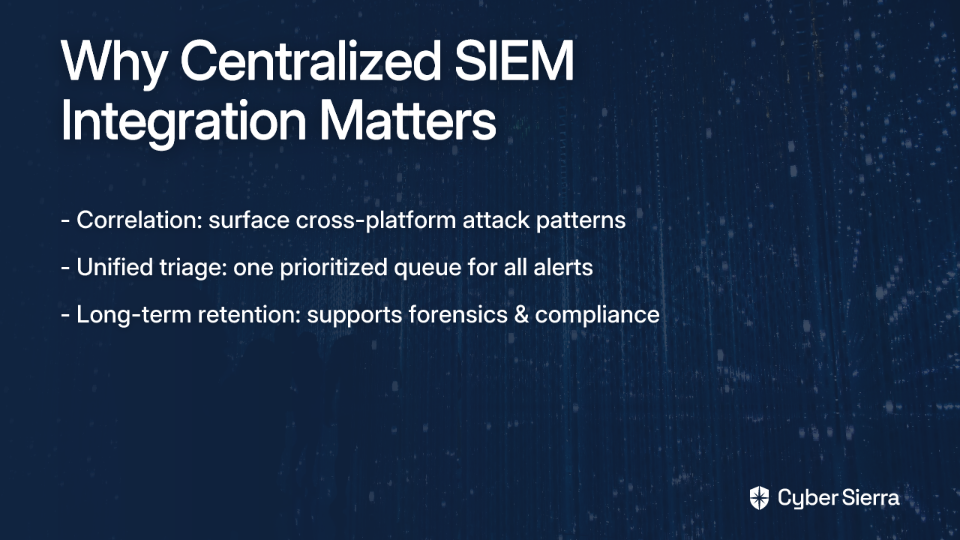
If your organization doesn't yet have a SIEM in place, this is the most operationally significant gap to address after MFA enforcement.
10. Unify Multi-Cloud Alerts Into a Single Pane of Glass
A SIEM centralizes logs. What security teams in complex multi-cloud environments ultimately need is something broader: a unified view of security posture across all environments, with standardized response workflows and continuous visibility into whether controls are actually working.
This is where fragmentation becomes a Chief Information Security Officer (CISO) problem, not just an analyst problem. Managing platform-specific alert policies, investigation workflows, and compliance evidence across Microsoft 365, Google Workspace, and AWS creates blind spots that auditors — and threat actors — will eventually find.
Cyber Sierra's CCM module addresses this directly. It aggregates alerts and control data from disparate cloud sources, normalizes them into a standardized format, and delivers a centralized view of your security posture with near real-time updates. Rather than chasing alerts across three platforms, security teams work from a single dashboard with consistent response workflows regardless of which cloud environment an alert originates from.
This shifts the operating model from reactive alert-chasing to continuous, proactive risk management — exactly the posture organizations need when their cloud footprint spans multiple providers and compliance frameworks simultaneously.
From Alert Chaos to Control
Suspicious login alerts are a data problem, not a volume problem. The teams who manage them effectively don't have fewer alerts; they have better processes for filtering signal from noise. They replace guesswork with documented protocols and manual triage with automated context.
The two most critical steps are foundational. First, establish a clear investigation protocol that defines exactly what to do for each alert type—this turns ambiguity into a repeatable workflow. Second, automate the enrichment of every alert with contextual data like user history and IP reputation. This is how you shrink a 30-minute investigation into a 30-second decision.
Your next step today: Choose your most common suspicious login alert and document a simple, five-step investigation process for your team to follow.
Once you have your processes in place, the right platform can centralize your efforts. If you're tired of chasing alerts across different cloud consoles, book your Cyber Sierra demo and see how a unified view changes everything.
Frequently Asked Questions
What is the first step to take when handling a suspicious login alert?
The first step is to follow a clear, documented investigation protocol. This protocol should guide you to check the user's login history, IP reputation, and account privileges to determine the alert's legitimacy before taking action like forcing a password reset or suspending the account.
How can I reduce the number of false positive suspicious login alerts?
You can reduce false positives by fine-tuning alert policies in platforms like Microsoft 365 and automating contextual enrichment. Add context like IP reputation and typical user work hours to alerts, which helps filter out benign events like an employee logging in while traveling.
Why is multi-factor authentication (MFA) so important for suspicious logins?
MFA is the most effective control for preventing account takeovers. While it doesn't reduce alerts, it ensures that even if an attacker uses stolen credentials for a suspicious login, they cannot gain access without the second factor, dramatically reducing the actual risk of a breach.
What is the best way to manage alerts from shared accounts?
The best way is to eliminate shared credential usage. Use platform-native features like email delegation for shared mailboxes in Microsoft 365 and Google Workspace or Shared Drives for file access. This ensures every action is tied to an individual user, creating a clear audit trail.
How does centralizing alerts help manage multi-cloud security?
Centralizing alerts with a SIEM or a continuous control monitoring (CCM) platform provides a single view for all security events. This allows analysts to spot cross-platform attack patterns, avoid duplicate work, and respond to incidents faster without switching between multiple consoles.
What metrics should I track to measure my team's effectiveness in handling alerts?
Track the percentage of alerts that require manual investigation and the average investigation cycle time (from alert to closure). A decrease in these metrics over time demonstrates that your alert tuning, automation, and investigation protocols are becoming more efficient and effective.
